Centura Elements - Teamtailor Integration
This article guides you through the integration between Centura Elements and Teamtailor. Centura Elements empowers HR Professionals and Consultants with validated psychological testing and deep competency evaluation, seamlessly integrated to streamline the hiring process and ensure superior candidate selection.
Centura Elements provides a fully integrated solution for modern recruitment. It specializes in delivering high-quality psychological testing and critical competency evaluation, all accessible directly within the Teamtailor platform.
By using Centura Elements, recruitment teams can minimize administrative overhead by eliminating manual data transfers. Candidates complete validated assessments as a smooth step in their application journey, and recruiters receive comprehensive, easy-to-read results instantly within the Teamtailor interface. This integration helps evaluate potential for growth, cultural fit, leadership capabilities, and underlying motivational drivers—metrics crucial for employee retention and internal mobility.
How to enable the integration
Note: A user must have the company admin role in Teamtailor in order to be able to set up the integration.
Step 1: Activate Centura Elements in the Marketplace
- In your Teamtailor account, click on your company name in the top right corner and select Marketplace.
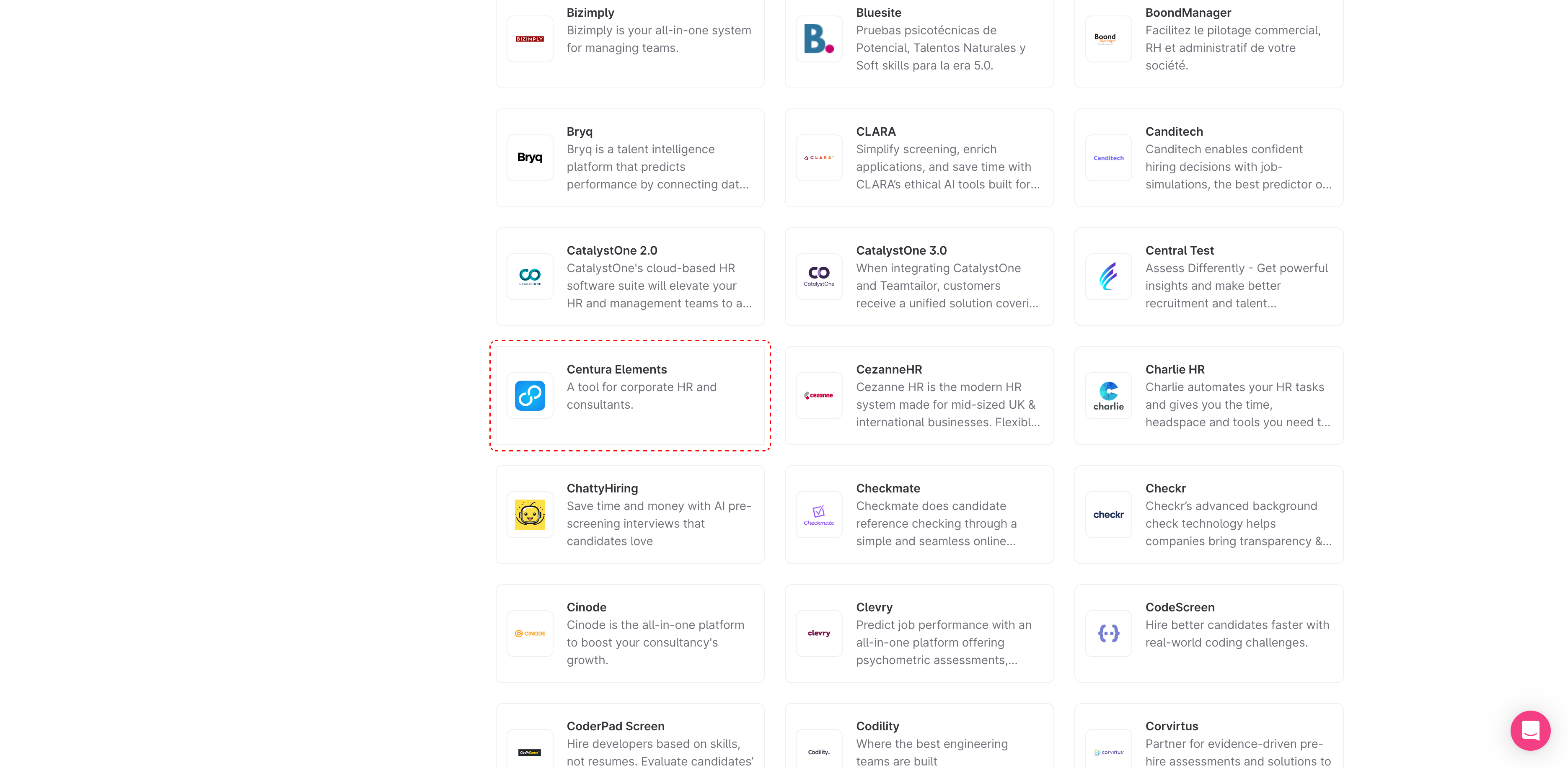
- Search for Centura Elements in the list of partners and click on it.
- Click Activate to add the partner to your account.
Step 2: Configure the Integration Key
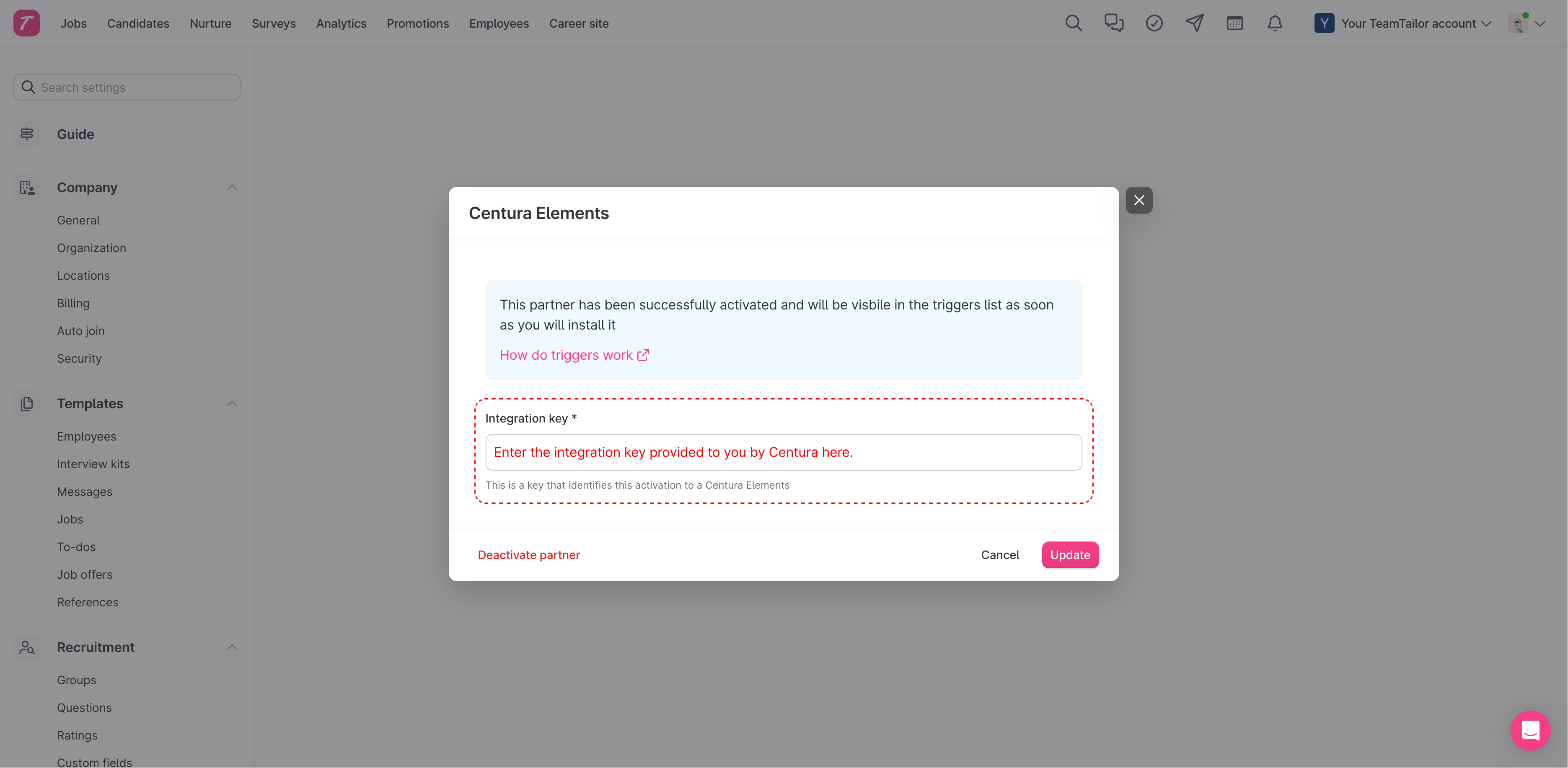
- Once activated, go to Settings → Integrations → Marketplace activations.
- Find Centura Elements and click View settings.
- Enter the Integration key provided to you by Centura Elements.
- Click Update to save the configuration.
Details regarding the integration
The integration works by sending candidate information to Centura Elements and receiving assessment results back into Teamtailor.
Data Transfer
From Teamtailor to Centura Elements:
- Candidate Name (First and Last name)
- Email address
- Phone number (if available)
From Centura Elements to Teamtailor:
- Assessment Status (Sent, Completed)
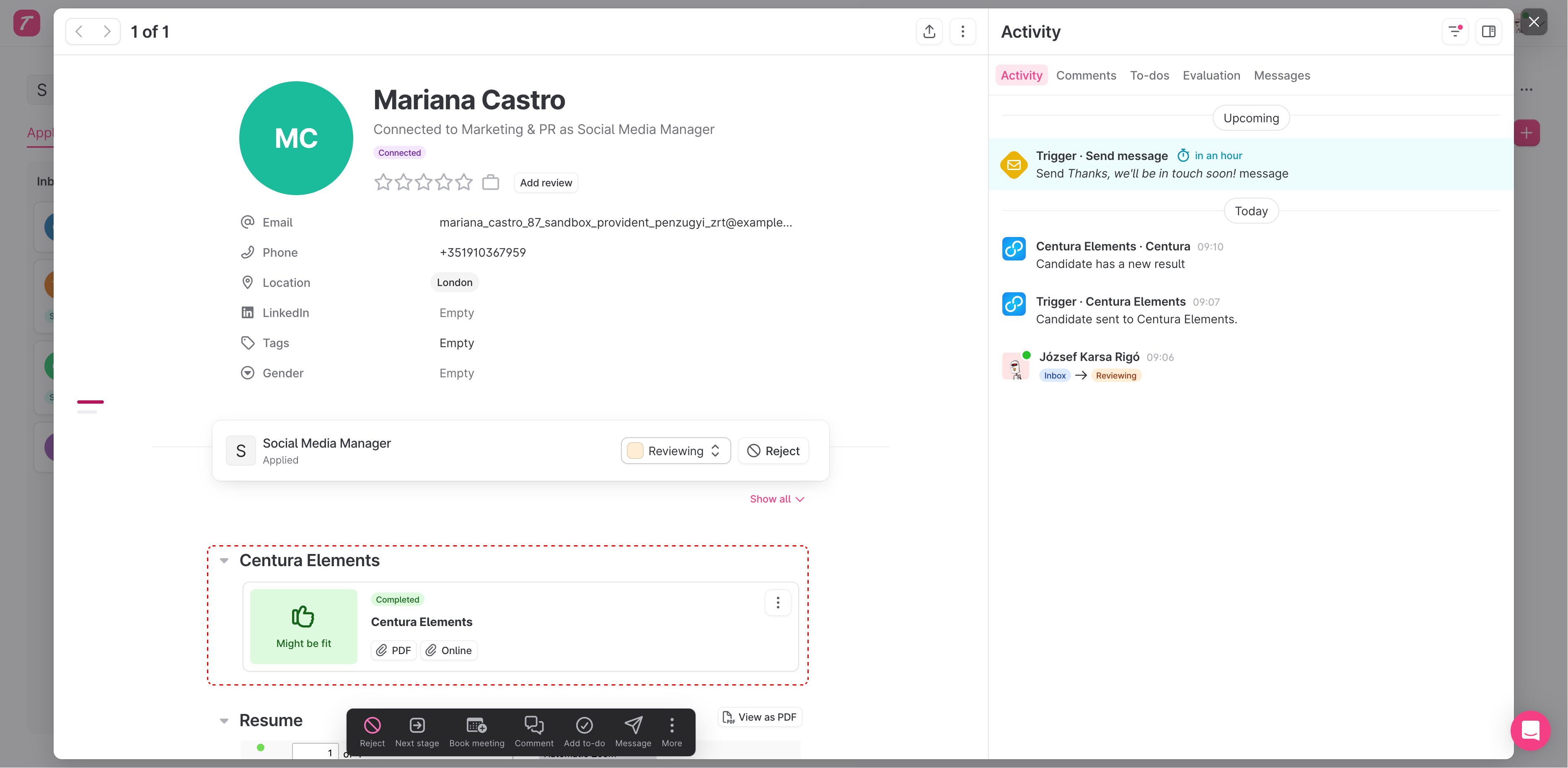
- Overall Score/Recommendation (e.g., "Might be fit")
- Assessment Reports (PDF link and Online view link)
Setting up Triggers
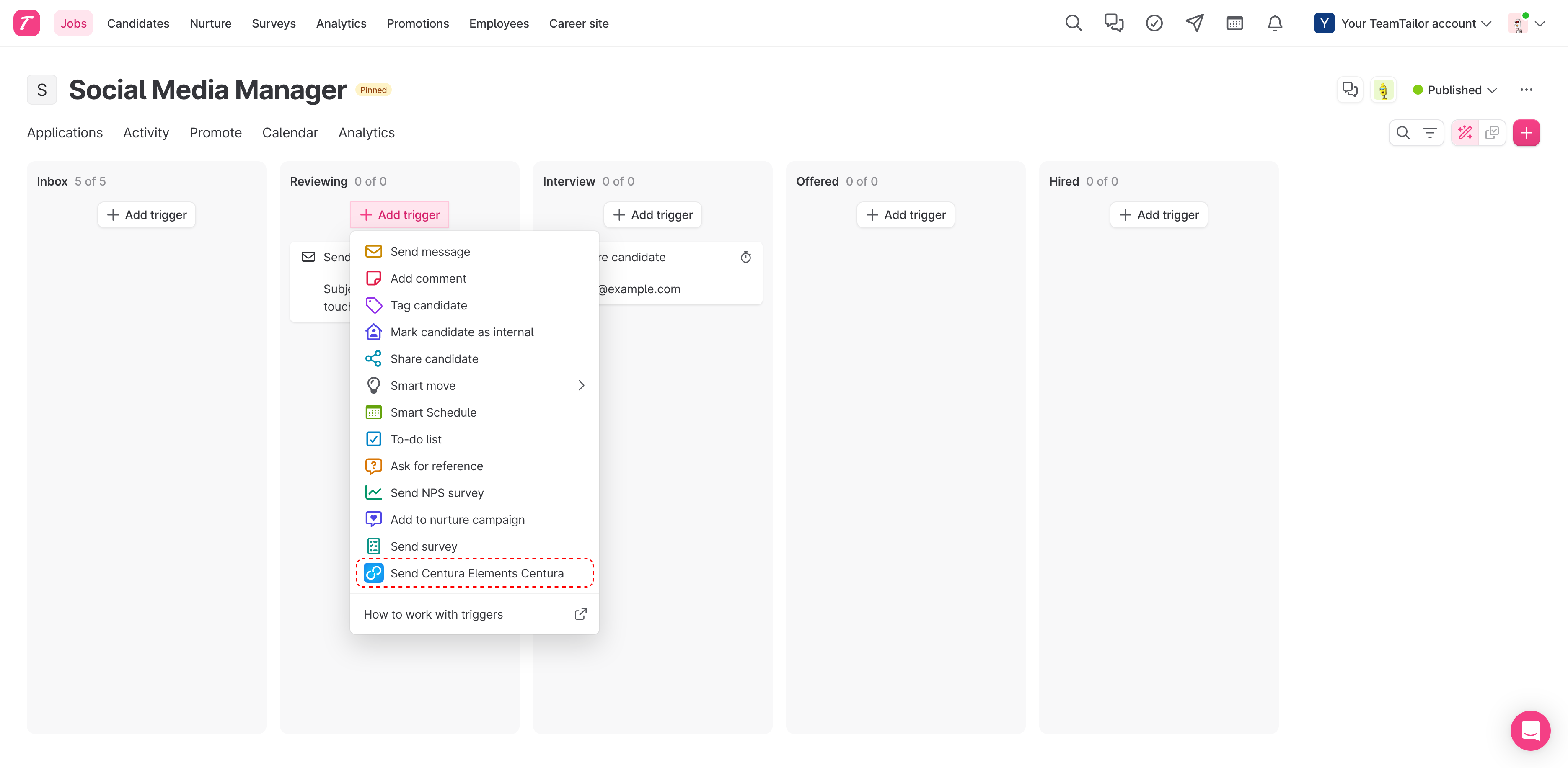
You can automate the assessment process by adding a trigger to a specific stage in your recruitment funnel (e.g., the "Reviewing" stage).
- o to the Jobs section and select a specific job.
- In the recruitment workflow, click the + Add trigger button on the desired stage.
- Select Send Centura Elements from the list.
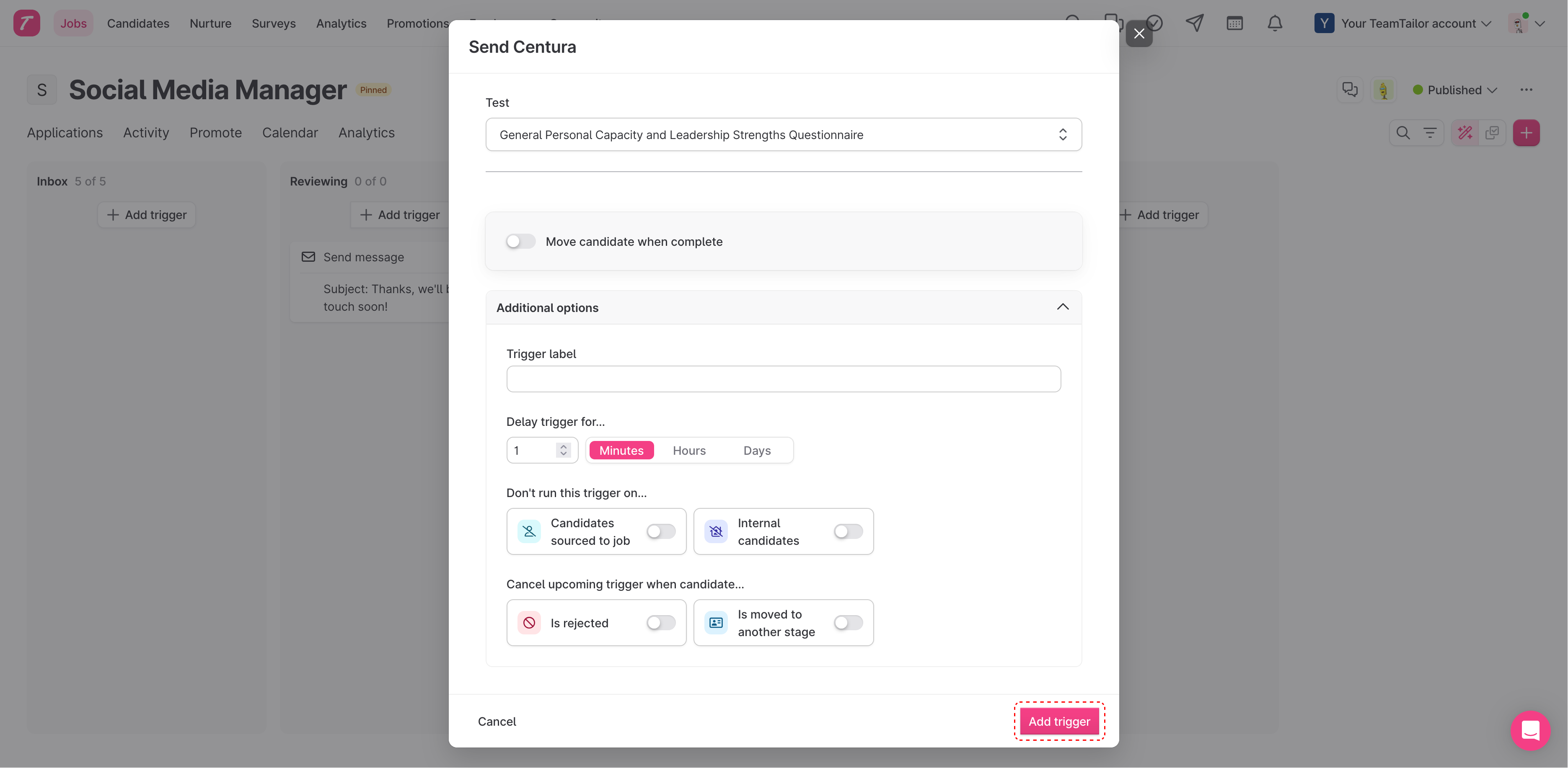
- Choose the specific Test you want the candidate to take.
- You can also toggle Move candidate when complete to automatically progress the candidate to another stage after they finish the test.
- Click Add trigger.
Viewing Results
Once the trigger is active, moving a candidate into that stage will automatically invite them to the Centura Elements assessment. When completed, the results will appear directly on the candidate's profile in Teamtailor.
Support
If you need assistance with the activation, configuration, or have questions regarding your Centura Elements account, please reach out to our support team.
- Support Email: Contact Support
- Sales & Pricing Inquiries: Contact Sales